Overview
Bulk Clone Group Tours is an Edge Operations wizard for creating a new selling season from existing Group Tours. Product Managers can select several tours, apply consistent naming and status rules, choose which Price Models and related configuration to include, and monitor the work as one job.
Use this wizard when you need to roll many Group Tours into a new season. For a single Salesforce record or another type of record, use the standard cloning options described in the Cloning guide.
Important: Bulk Clone creates new Group Tours and selected related records. It does not clone departures or inventory. Configure those separately for the new season.
What Gets Copied
Every run creates a new Group Tour for each selected source tour. You then choose what else to include:
| Record or configuration | Options |
|---|---|
| Price Models | All models, models with selected statuses, models marked Repeatable, or none |
| Standard configurations | Include or exclude room types, board basis, and similar configuration |
| Crew requirements | Include or exclude |
| Existing rates and supporting Price Model details | Copied with each selected Price Model |
The wizard lets you set the new Group Tour and Price Model names, starting statuses, and the Price Model start date. Review the selected scope before starting because these settings apply across the tours in the run.
Prerequisites
Complete the Salesforce and Edge setup before the first live clone.
Salesforce Checklist
- Confirm the org has a supported Kaptio Travel package version that includes Edge Operations. The Salesforce tab and hosting component are delivered with the managed package; a separate Bulk Clone Salesforce installation is not required.
- Give users access to the Edge Operations tab and to the Group Tour, Price Model, and Crew Requirement records used by the wizard. Use the access model already in place for that customer — do not assume a shared permission set across orgs.
- Add the Edge Operations tab to the relevant Salesforce Lightning app navigation if it is not already shown.
- On each Price Model that should be available to the Repeatable only scope, select the Repeatable checkbox. This checkbox applies to Price Models, not Group Tours.
- If you need Repeatable only or Price Model Start Date, confirm the org has Kaptio Travel 23.18 or later. The wizard disables these controls when the installed package does not support them.
Edge Checklist
- Confirm Kaptio has enabled Bulk Clone for the customer’s Edge tenant.
- Confirm the Salesforce org is connected to the correct Edge tenant and environment, with the required Salesforce trusted-site settings. This allows Salesforce to open the wizard and Edge Operations to work with records in that org.
- Confirm the bulk-clone-tab canvas is available for the Edge Operations tab.
- To support cloning from an individual record, add the Bulk Clone canvas to the Group Tour record page. This displays the Clone This Tour action.
- Test both launch paths with a user who will perform cloning.
Your Kaptio implementation team normally completes the Edge tenant and canvas configuration. Contact your administrator if the wizard does not open from Salesforce.
Open the Wizard
There are two launch paths:
Clone Several Tours
- Open the Kaptio Salesforce app.
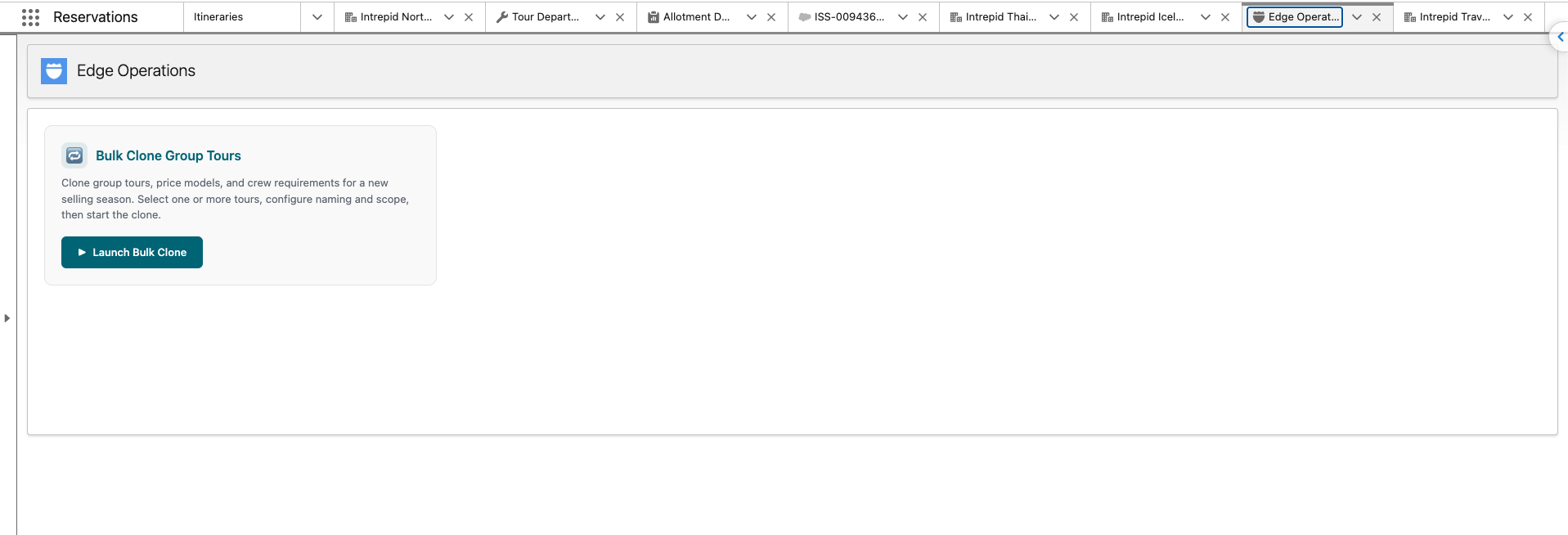
- Select the Edge Operations tab.
- Launch Bulk Clone Group Tours.
- The wizard opens at Select Tours, where you can search, filter, and select multiple Group Tours.
Start from One Group Tour
- Open the source Group Tour record.
- Select Clone This Tour.
- The wizard opens with that Group Tour selected and moves directly to the configuration step.
You can still review and change the scope before starting the clone.
Step 1: Select Group Tours
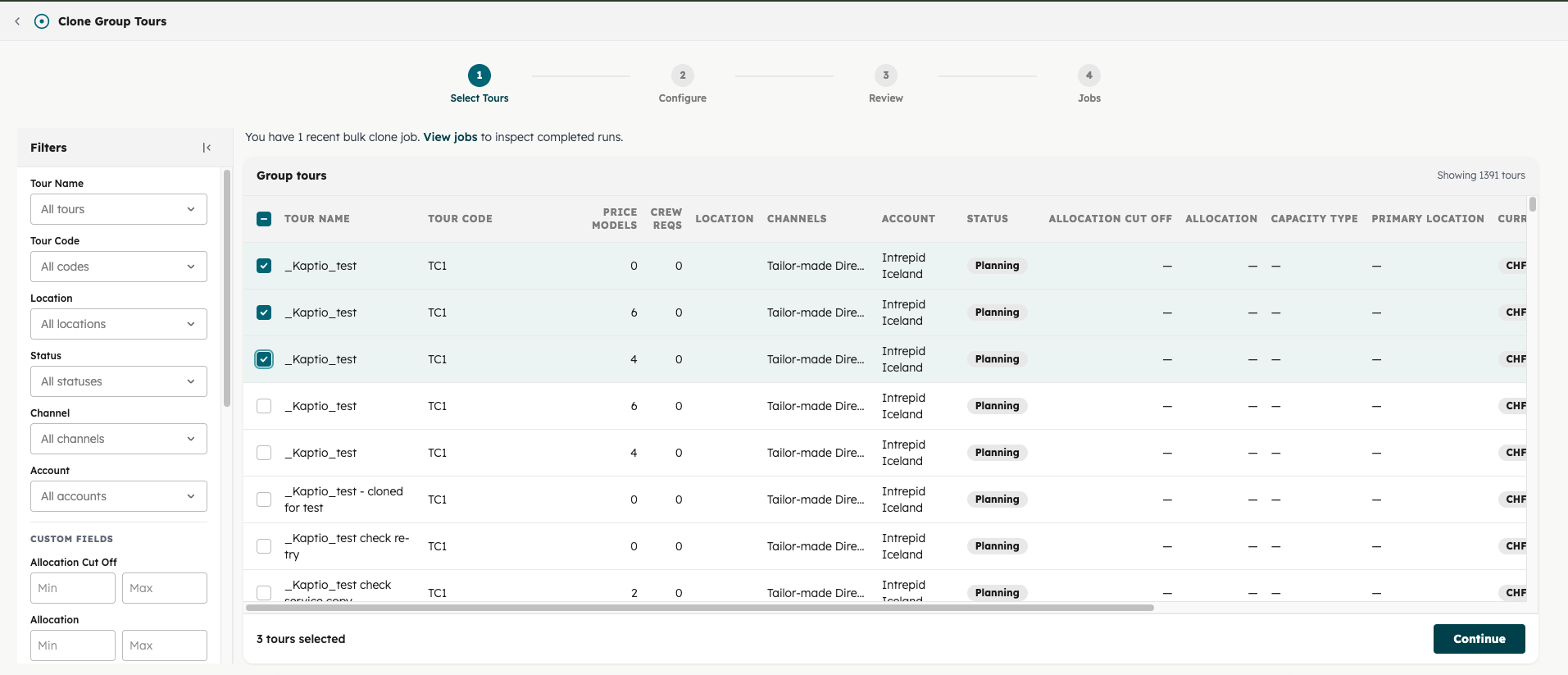
From Select Tours:
- Use the filters to narrow the list by tour name, code, location, status, channel, account, or customer-configured fields.
- Select each Group Tour you want to clone. The header checkbox selects all tours currently visible after filtering.
- Check the Price Model and crew requirement counts shown for each tour.
- Select Continue.
When you launch from Clone This Tour, the source tour is already selected.
Step 2: Configure Names, Statuses, and Scope
Set the New Names
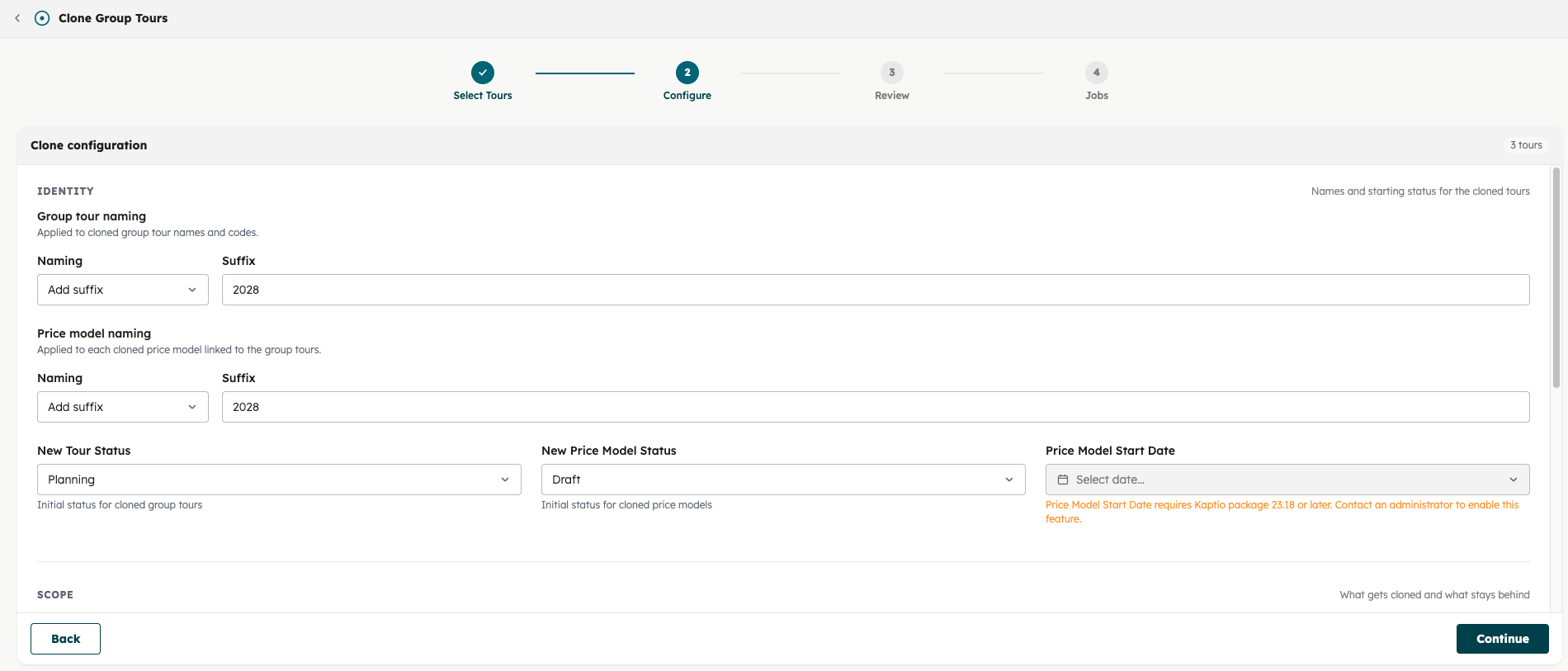
Choose a naming method separately for Group Tours and Price Models:
- Replace year — find the old year and replace it with the new year.
- Add suffix — add text to the end of each copied name.
Check the preview to make sure the resulting names and codes are clear and unique.
Set Statuses and Date
Choose:
- the starting status for each new Group Tour;
- the starting status for each new Price Model; and
- the Price Model start date, when available.
Use a planning or draft status until the cloned records have been checked.
Choose the Price Models
Select one scope:
- All price models
- Repeatable only
- Select by status
- No price models
If you select Repeatable only, the wizard includes only Price Models whose Repeatable checkbox is selected.
Choose What to Include
Choose whether to include standard Price Model configurations and crew requirements. Existing rates and supporting Price Model details are copied with each selected Price Model. The wizard always shows a reminder that departures and inventory are not cloned.
Use Dry Run First
Select Dry run for the first pass. A dry run validates the Salesforce queries and planned scope without creating any records. It does not perform the live record-creation steps, so review the results of the live run separately.
Step 3: Review the Run
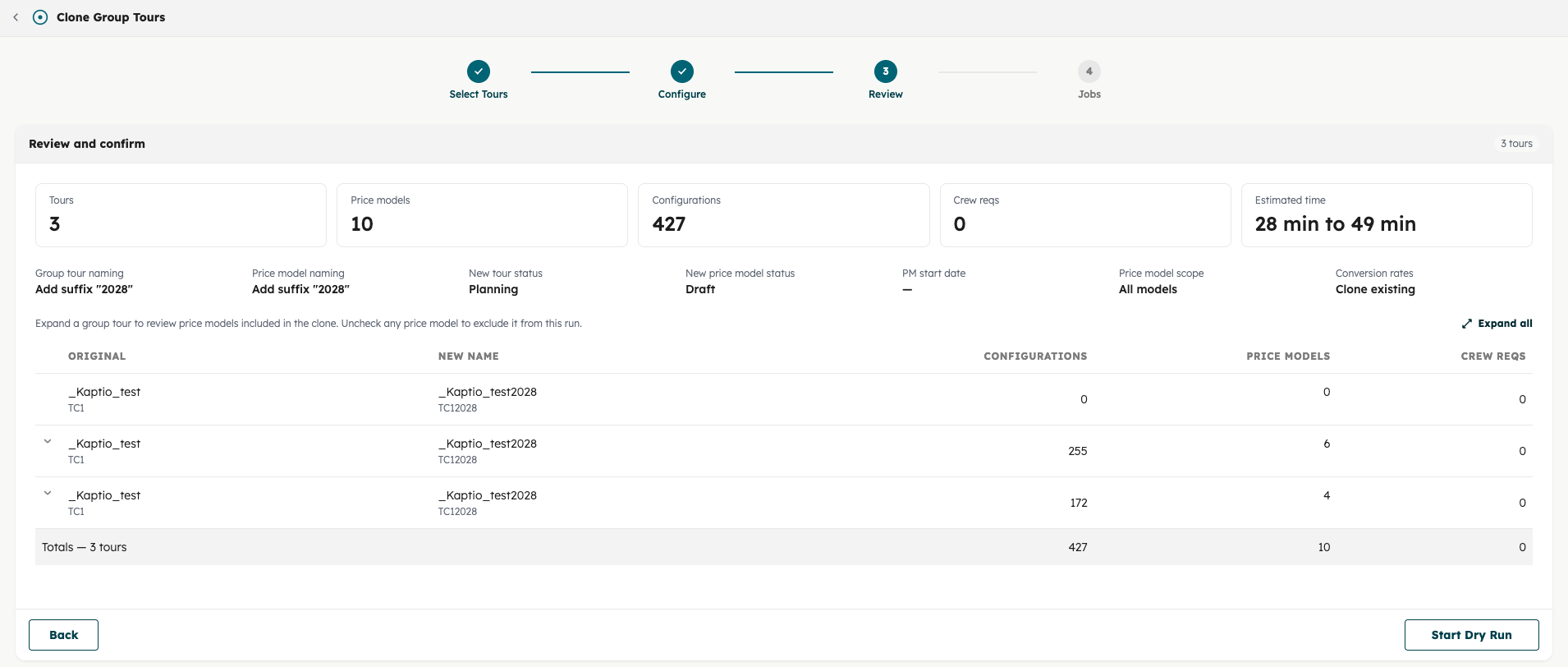
The Review and confirm step shows:
- the number of Group Tours, Price Models, configurations, and crew requirements;
- the estimated processing time;
- the new names, statuses, date, and scope; and
- the Price Models included for each Group Tour.
Expand a Group Tour to review its Price Models. Clear the checkbox beside any Price Model that should not be included.
Select Start Dry Run when Dry run is enabled, or Start Cloning for a live run.
Step 4: Monitor and Check Results
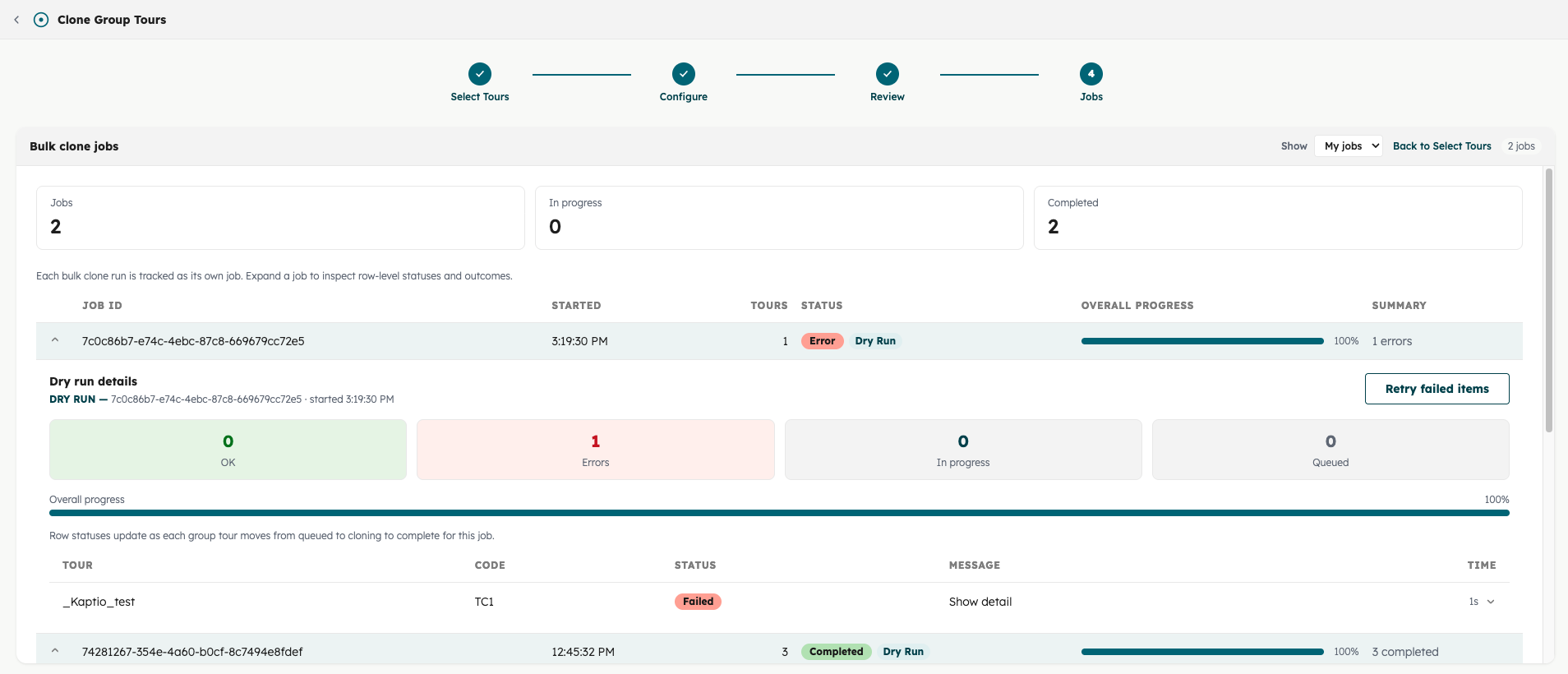
Each run appears under Bulk clone jobs. The job shows overall progress and a row for each Group Tour.
- Expand the job to see tours that are queued, in progress, completed, cancelled, or failed.
- For a completed live clone, select View Cloned Record and check the new Group Tour in Salesforce.
- Review any completion message or warning before treating the run as finished.
- Expand failed rows to read the error detail.
- After correcting the reported issue, select Retry failed items. The retry resumes failed work rather than starting a new run for completed tours.
After a successful dry run, return to the configuration step, clear Dry run, review the settings again, and start the live clone.
Post-Clone Checks
Before making the new season available:
- Confirm the Group Tour and Price Model names and statuses.
- Check that the expected Price Models, configurations, rates, and crew requirements are present.
- Configure and validate departures and inventory.
- Review Price Model dates and conversion rates.
- Test the new records through the normal pricing and operational workflow.
If Something Looks Wrong
A Group Tour is missing from the list
Clear all filters and search again. Confirm the source is a Group Tour and that the user can access it in Salesforce. If it still does not appear, ask an administrator to check the org connection and the customer-configured Group Tour filter fields.
Repeatable only is unavailable
Confirm the org has Kaptio Travel 23.18 or later. Then confirm the relevant Repeatable checkbox is selected on each source Price Model.
A dry run succeeded but no records were created
This is expected. Dry run validates the planned work and never creates Salesforce records. Return to configuration, clear Dry run, and start cloning when you are ready. A successful dry run does not guarantee that every live record-creation step will succeed, so monitor the live job through completion.
The Salesforce session expires during a long job
The clone job continues independently of the browser session. Relaunch Edge Operations from Salesforce, then open View jobs to check progress and results.
Some tours complete and others fail
Expand the failed rows and use the message to correct the source data or configuration. Then use Retry failed items. Do not start the whole selection again unless you intend to create another set of Group Tours.
See Also
- Group Tours — Configuration Guide — Group Tour, Price Model, and service conversion concepts
- Cloning — standard Salesforce cloning for packages, services, promotions, and itineraries
- Seasonal Package Setup Guide — date periods, seasons, and seasonal pricing